Blog Page 51

Google Is Now Testing New Shapes For Hard Drives That Will Be Taller And Cheaper

Short Bytes: To improve its cloud storage facilities and data centers, Google is now experimenting with new shapes of hard drives. Google aims to improve the overall performance and reduce the operational costs with taller hard drives.

 hard-disk-google-data-center
Ever since their introduction, the mechanical drives haven’t changed much. Their physical size and standard 3.5 and 2.5-inch shape has remained the same for decades. With the introduction of faster SSDs, their dominance is under threat more than ever.

If we talk about data storage applications, the cloud storage is slowly becoming an extension of our computer’s physical drives. As more people are storing data in their cloud accounts, the technology companies are working on improving their capabilities. They have managed to improve the data density of the hard drives within a given space. Another important key factor that plays a key role in cloud storage is reliability.

To improve its cloud facilities and store more data into hard drives, Google has decided to experiment with new shapes. We know that Google owns mammoth data centers where it develops and uses its own server designs. These servers depend upon the 3.5-inch drives and they face a risk to lose data.

In a recent paper published at Google Cloud Platform Blog, the company tells that it needs to explore changes like taller drives and grouping on disks. The company also mentions the need to “optimize the collection of disks, rather than a single disk in a server.”

With these experiments and changes, Google aims to improve the overall performance apart from lowering the operational costs. One interesting fact — Google doesn’t seem much concerned with the reliability of the new drives. If you dare to ask why — it’s because cloud storage systems have their backups built in.

“We hope this is the beginning of both a new chapter for disks and a broad and healthy discussion, including vendors, academia and other customers, about what “data center” disks should be in the era of cloud,” Google writes.

What are your views regarding this development in HDDs? Share your views in the comments below.


How White Hat Hackers Hacked An Offline Laptop In Another Room Within Seconds

Short Bytes: The researchers from Tel Aviv University and Technion have found a way to steal encryption keys from “safe” air-gapped machines. The attack was launched from another room and the target was completely offline. Known as side-channel attack, it doesn’t try to break the encryption by exploiting encryption algorithm weakness or brute force attack. Instead, researchers captured the electromagnetic waves emitted during the decryption process.


 hacking-offline-computer-capturing-em-waves

In recent times, hackers are aggressively targeting the air-gapped machines, which are considered super-secure. These systems are disconnected from the internet so that a hacker is unable to deploy any attack remotely via internet or any network.

Do you remember the researchers who used a homemade device “PITA” to steal keys and data from your PC? That device captured the stray radio waves emitted by your computer’s processor.

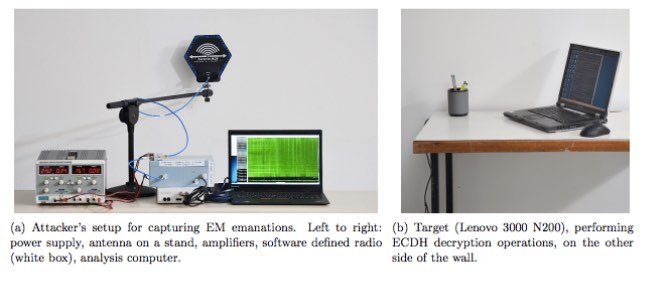
Going one step ahead, the same researchers from Tel Aviv University and Technion have showcased a way (PDF) to squeeze data from such “safe” air-gapped machines. Interestingly, the hacked computer was located in an adjacent room, across a wall.

This attack extracts the secret decryption keys within seconds from the target machine located in other room with the help of lab equipment (antenna, amplifiers, software-defined radio, and laptop) worth $3000. The experts claim that with more lab research, the equipment could be simplified.

The attack was completely non-intrusive and the targets were not touched. Known as side-channel attack, it doesn’t try to break the encryption by exploiting encryption algorithm weakness or brute force attack. Here, the method used to break the encryption was capturing the electromagnetic waves emitted during the decryption process.

hacking-offline-computer-capturing-em-waves-1

After obtaining the private key from a laptop running GnuPG, the researchers sent a specific encrypted message to the target. Now, the EM leakage of the target was measured repeatedly to reveal the key. The secret key was obtained after studying 66 decryption processes (each lasting 0.05 seconds) in 3.3 seconds.

At the moment, such ways to hack systems is very much limited to research. But, researchers feel that in not-so-distant future, hackers could use these techniques by making them more accessible and cheaper.

“Our work is most pertinent to systems that are carefully protected against software attacks, but—as we show—may be wide open to inexpensive physical attacks,” researchers said.


Tips and Tricks to Get The Best Out Of Windows 10

Here here some cool tips and tricks to get more out of Windows 10

From the time, Microsoft launched its new operating system Windows 10 on July 29, it has been in the news for all the wrong reasons. While some complained about the security issues, some said that it is little better than Windows 8. However, not all of the things in Windows 10 are bad.
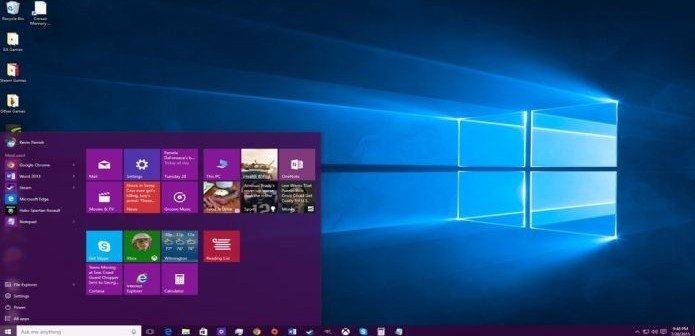
Windows-10-695x336

Here are some tips and tricks for those who have recently purchased a computer with Windows 10 or have upgraded, that will help you save time and make the operating system more effective and user-friendly.

Use Cortana

You can ask Cortana anything, and you will get your answer. For example, you can ask Cortana question about the weather, the age of your favorite celebrity or the events coming up on your calendar. Cortana, a digital personal assistant not only finds files and launch apps, but can be also used to type in requests for Cortana.

To send emails, you need to simply type in “Send an email to <NAME> about <SUBJECT> and then you can set alarms or reminders as well. You also do not have to open a separate app to do so. You can save a lot of your time, as you can do almost anything with Cortana by just requesting or asking it something.

Get a Longer Battery Life

Are you aware that there is a battery saver mode that will start when the AC power is unplugged? There are some things that you can do to make your battery life last longer. All you need to do is, go to “Start” and then “Settings”, click on “System” and “Battery Saver”. This will allow you to see what apps on your computer are consuming the most battery power. You can then add apps to the list of exclusions, which means that when the battery is low, Windows 10 will restrict those apps. This can really help you when you have very low battery power.

Increase Monitor Size

Windows 10 has an in-built function for a virtual Desktop, which makes it very simple to control the open apps that you have on your computer. All you need to do is to keep moving these open apps to their own Desktop, until you have to access them. In order to see the three Desktops that are the default, press [Windows] + [Tab] and you will be able to get a summary of the open apps on each of the three Desktops. To see the contents, all you need to do is keep the mouse pointer over one of the Desktops at the bottom of the screen.

You can also drag the apps from one Desktop to another Desktop, and then add more Desktops by clicking on “New Desktop”. This is very helpful for those who work from home and who require a lot of windows and apps to be opened at the same time. For instance, if you are looking at multiple types of documents at the same time, or browser apps and Excel or Word. You can also switch easily between the Desktops by pressing [Windows] + [Ctrl].

Using the Hidden Start Menu

With Windows 10, Microsoft brought back the Start Menu. The best feature about the Start Menu is that you can customize in a number of ways. Every one is aware of the left click, but you can now also right-click the Start Menu too. If you right-click on the Start button, it will allow you to access a range of shortcuts that are basically for the more complicated parts of Windows. Just use the right-click option on the Start Menu, if you want to access these advanced parts promptly.

Record Videos of Apps

Use the in-built app Game DVR for taking screenshots and recording videos. Meant for taking screenshots of videos games, Game DVR can be used with any open app and can make screenshots or record any types of videos of anything that you may have opened in Windows 10. It is very simple to use and helpful when you are looking to make a video for a family member or friend on your computer. You can access it through the shortcut by using [Windows] + [G]. However, it might not work through shortcut all the time.

Change File Explorer’s opening folder

In Windows 10, File Explorer opens with Quick Access selected. Old-school Windows users might prefer to start in This PC (previously known as My Computer), which includes the six standard data folders in your user profile as well as any local drives and removable media such as USB drives.

No problem. On the ribbon, open the View tab, click Options, Change folder and search options, and then choose one of these two options.

Use the expanded Send To menu

Yes, you can right-click a file or folder (or multiple items, for that matter) and use the Send To menu to do a few interesting things, like move or copy the selection to your Documents folder, create a compressed file (in .zip format), or send the selection as an email attachment.

Customize the Send To menu

Speaking of the Send To menu, you can make it much more useful by adding and removing the options on the default (short) menu. They’re just shortcuts, but good luck finding them, because they’re buried in a folder hidden deep within your user profile.

To get to that folder, open the Run box (Windows key+R), typeshell:sendto, and then press Enter.

First order of business: delete the Fax Recipient shortcut. After that, you can add shortcuts to favorite folders (local and network). You can also add shortcuts to programs. Adding a shortcut to Notepad or another text editor makes it much easier to quickly edit any file, for example. Ditto for pictures and your favorite image editor.

Hope you like the tricks given above. Please share you own tips and tricks in Windows 10 for the benefit of other readers.
Top 5 Supercomputers Of The World

Supercomputers of today are the retrogressive image of the one’s in 1960s i.e. a gigantic machine racking up an entire room with a huge screen and hundreds of wires and buttons.

Supercomputer-TIANHE2-china

Sure, modern computers look like a stack of books in a library, but the computing prowess of these babies is outrageous. The processing power of the latest Supercomputers is calculated in Petaflops ( ability to do one quadrillion floating point operations per second)
Let’s begin the top 5 list of Supercomputers of this generation.
5. Mira (USA)
Mira-Supercomputer

Mira is IBM’s self-built Supercomputer that has the peak performance of 8.6 petaflops. At Argonne National Laboratory, US, it uses IBM’s BlueGene/Q platform with 786,000 core processors.

4. K Computer ( Japan)

K-supercomputer

At 10.5 petaflops, Fujitsu’s K computer is located at Japan’s RIKEN Advanced Institute for Computational Science. With 705,000 SPARC64 VIIIfx octo-core processors, K computer performs scientific operations including global disaster prevention, meteorology and medical research.

3. Sequoia (USA)

Sequoia-Supercomputer

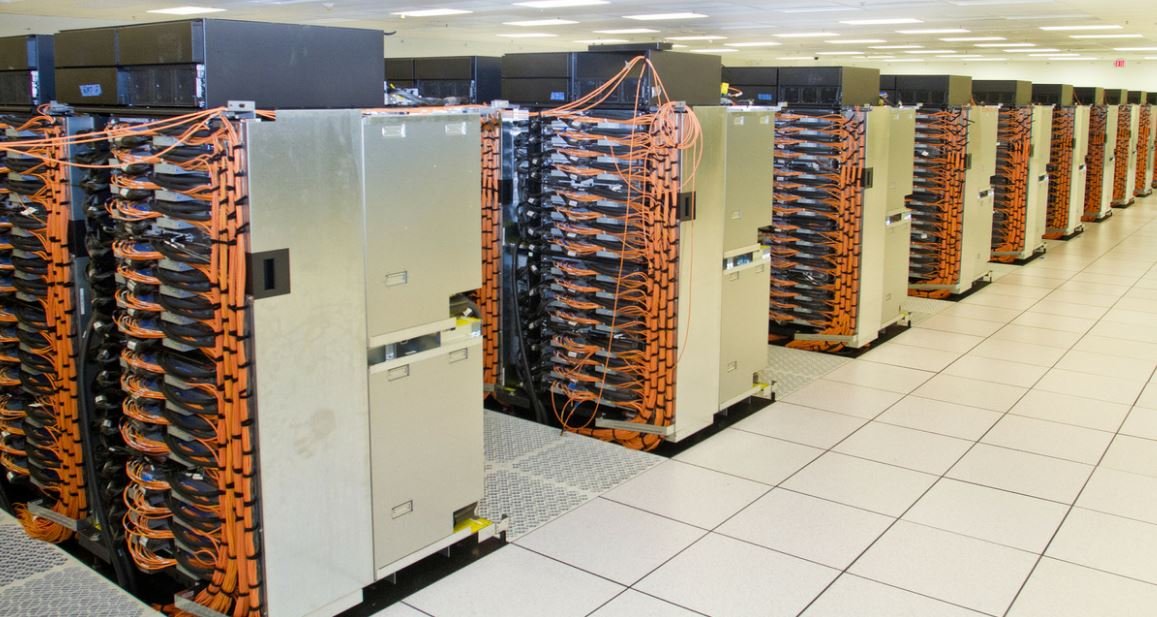
Another IBM machine Sequoia also runs on BlueGene/Q design with 1.6 million 16- core processors. It has a performing speed of 17.2 petaflops.

2. Titan (USA)

Titan-Supercomputer

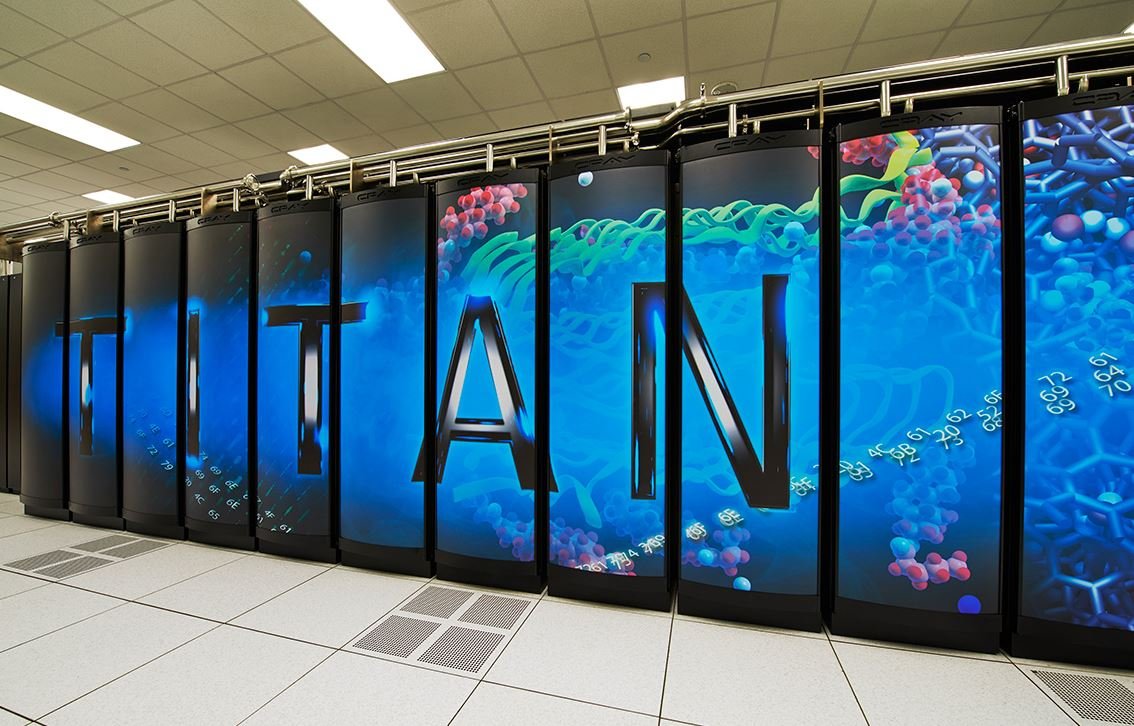
A major upgrade to another Supercomputer Jaguar,  Titan performs at a blazing speed of 17.6 petaflops. It uses a total of 561,000 Opteron 6274 16-core 2.2GHz processors along with NVIDIA GPUs.


1. Tianhe-2 (China)


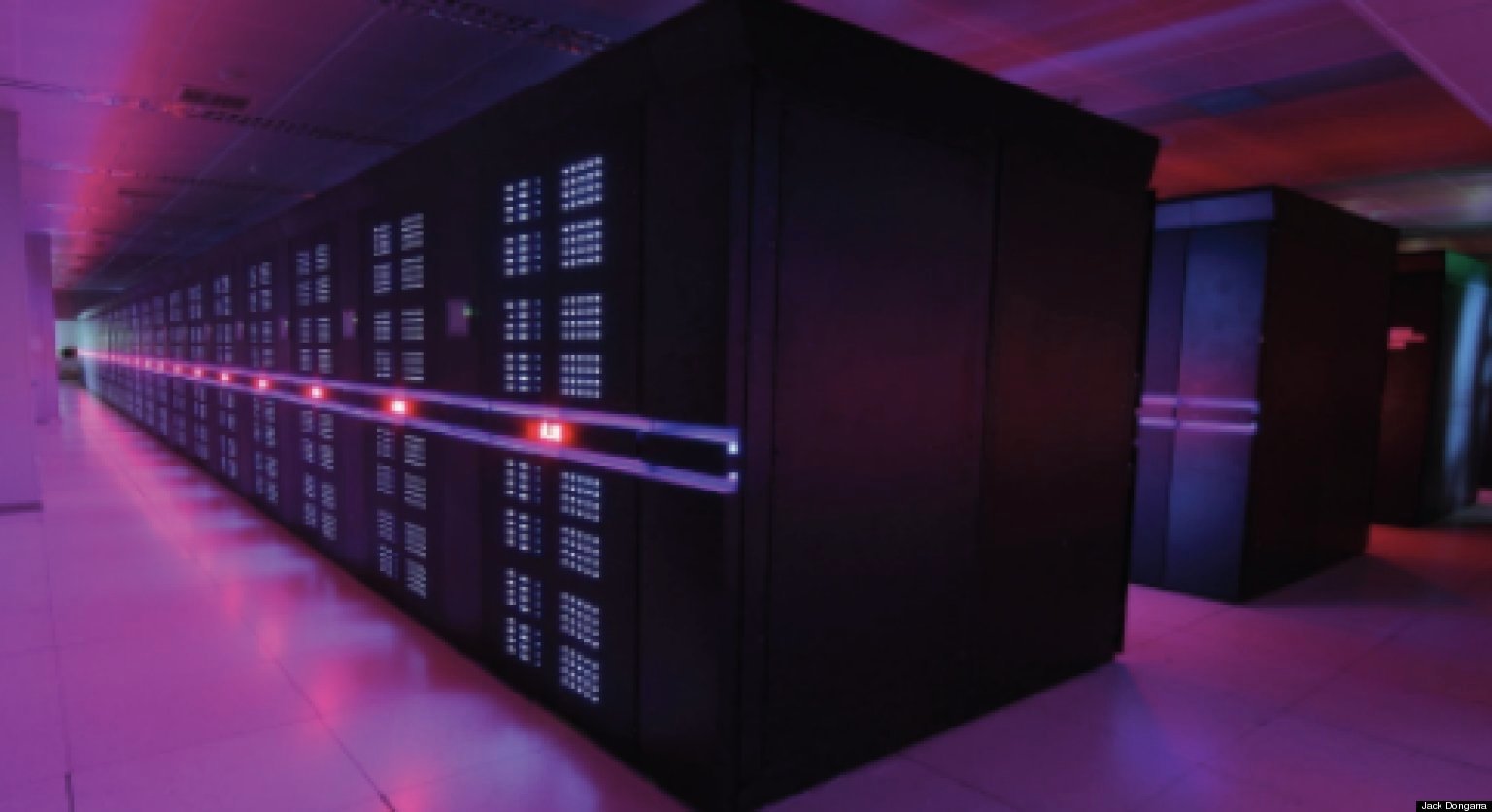
Literally meaning Milky Way-2, the king of supercomputers processes at a staggering speed of 33.9 petaflops. It was developed by China’s National University of Defense Technology. This peerless Supercomputer runs on a whopping 3,120,000 cores, comprising of a mix of Intel Xeon E5 processors, custom processors and Intel Xeon Phi coprocessors.

With these super fast machines on board, scientists have managed to expand their boundaries and work the ultra complex quantum mechanical calculations. Also, these supercomputers are utilized in climate research, simulation of early moments of Universe, Nuclear fusion, and Cryptanalysis.

Was the blog post informative to you? Let us know in comments below.

Android vs iPhone : Which is more secure?

iPhone vs Android smartphone ? Which is the most secure of them all

If you ask this question on a smartphone forum, rest assured, you thread will run into at least a thousand replies but then result will always be inconclusive. The fact remains that at cyber criminals develop an Android malware every 17 seconds and it is plagued with other security flaws making it vulnerable to hackers.

Many users swear by iPhones with regards to security and privacy. Not that they are alone, many security experts will vouch for Apple’s devices saying that they more secure and reliable in the context of data protection and spying evasion than the Android or Windows operating systems. In fact, it is being stated that out of the three main operating systems, it the Apple’s iPhone that is highly reliable due to the much talked about “Erase Data” feature.

Erase Data feature in iPhone wipes the data after ten failed passcode entry attempts. This security feature is so unique that it distinguishes Apple’s iPhones from all other available smartphones in the market.

iphone-vs-android-820x420-702x336

The Apple fanboys put forward a relevant fact to validate their point of view. Earlier in the week, FBI got an US court to order Apple to unlock the iPhone belonging to San Bernardino shooter. The FBI wanted to check Syed Rizwan Farook’s phone to get information about his alleged actions and activities, which prompted the mass killings in December. Farook and his wife Tashfeen Malik went on a mass shooting spree in 2015 and both were killed soon after.

Apple lovers say that due to iPhone’s strong encryption abilities and data protection features FBI had to approach the court. If it had been an Android smartphone, FBI would have cracked it easily and the issue would not have snowballed into a Apple vs Court slugfest as it has happened now.

However there is a twist to the Android vs iPhone saga. New survey conducted by OnePulse, a London startup among iPhone users reveals that almost half of them think Android phones are “more advanced” than iPhones.

OnePulse surveyed 1,500 iPhone and Android users via its app to find a sensible answer for this age old chicken vs egg query. Overall, including iPhone and Android users, 40 percent of those surveyed said Android was more advanced than iPhone.

“We put Android and iPhone users against each other in our poll to understand what they think is better, despite what phone they actually own,” said OnePulse brand manager Meagan Healey. “The insights were surprising as there seemed to be no hostility from either sets of users.”

The results are surprising considering the iPhone’s popularity. Apple sold 74.78 million iPhones, first quarter 2016 results showed, the most it ever has sold in a quarter. iPhone is ranked as the No. 1 gadget brand on Facebook, with more than 400 million people expressing an interest. Cannacord research found that, owing to Apple’s high profit margins, the iPhone accounted for 92 percent of smartphone profits in the first quarter of 2015.

While the issue cannot be solved on a stroke of pen or with this article, the Windows Phone is slowly stealing the march of both, Android and iPhone as far as security is concerned. Many security experts swear by the Windows run smartphones to be best among all in terms of security and privacy, though they have hugely unsuccessful among smartphone buyers.

Security and privacy league have other candidates like Blackphone, BlackBerry etc. but some experts from big antivirus firms feel that the ‘Erase Data Feature’ gives iPhones an edge over other smartphones. According to Avast Director of Threat Intelligence, Filip Chytry, the Erase Data Feature can be added to added to Windows and Android devices also. But, the issue is that it is complicated and designed for system admins, not normal users. Chytri explained that on an Android smartphone, you need to have “device administrator permission,” whereas the users are required to get an especial app and follow some additional steps. Generally, users aren’t familiar with such intricate procedures. Chytri added that Windows phone users also need to download special software.

Trend Micro’s global threat communications manager Christopher Budd echoes Chytri’s opinion and says that Apple is currently leading the game as far as encryption capabilities are concerned.

Apple enabled default encryption on its iPhones since the 3Gs while Android started offering this facility only recently whereas Windows phones still lag behind in this regard, informs Chytri. In Android 6.0 Marshmallow, full disk encryption has been made mandatory but older Android smartphones still dont have this facility.

All in all, both smartphones have a different niche to cater too, but security wise, iPhone leads the pack with its Erase Data Feature and end-to-end encryption.

How to use your Android smartphone as remote mouse and keyboard for your PC

How-To-Use-Android-As-Mouse-and-Keyboard-696x336


Here is how you can control your PC/laptop with your Android smartphone/tablet using it either as keyboard or mouse.

Android OS has increased the overall usage domain of mobile phones in a short period of time. Since it is always fun to do the awesome things with your smartphone, we are presenting a new way to use your Android smartphone/tablet. That is as a keyboard or mouse for your PC.

Before we begin, you must know this “this process will only work with Intel based PCs”. Now first of all you have to get Android Remote Keyboard App and software.

How to Set Up Intel Remote Keyboard

  1. Download Intel Remote Keyboard on your Android device or tablet.
  2. Download and install the Intel Remote Keyboard Host on your Windows PC. You will need to choose x86 or x64 depending on your Windows. If you aren’t sure what you are running, there are four easy ways to know if you’re on 64-bit Windows.
    (Important: Make sure your Android and Windows devices are connected to the same Wi-Fi network.)
  3. On your Android phone, tap the Windows device name.
  4. Your Windows PC will now show a large QR code. Just scan it with your Android smartphone’s camera (following the on-screen instructions) and the two devices will be paired.
  5. You’re all set!

What you can do:

Aqua_Power_HD_2016-01-07-21-53-31

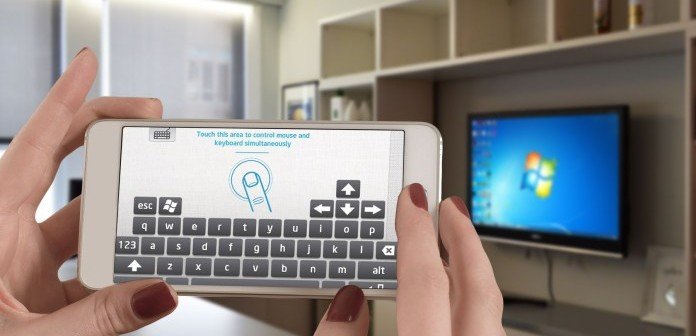
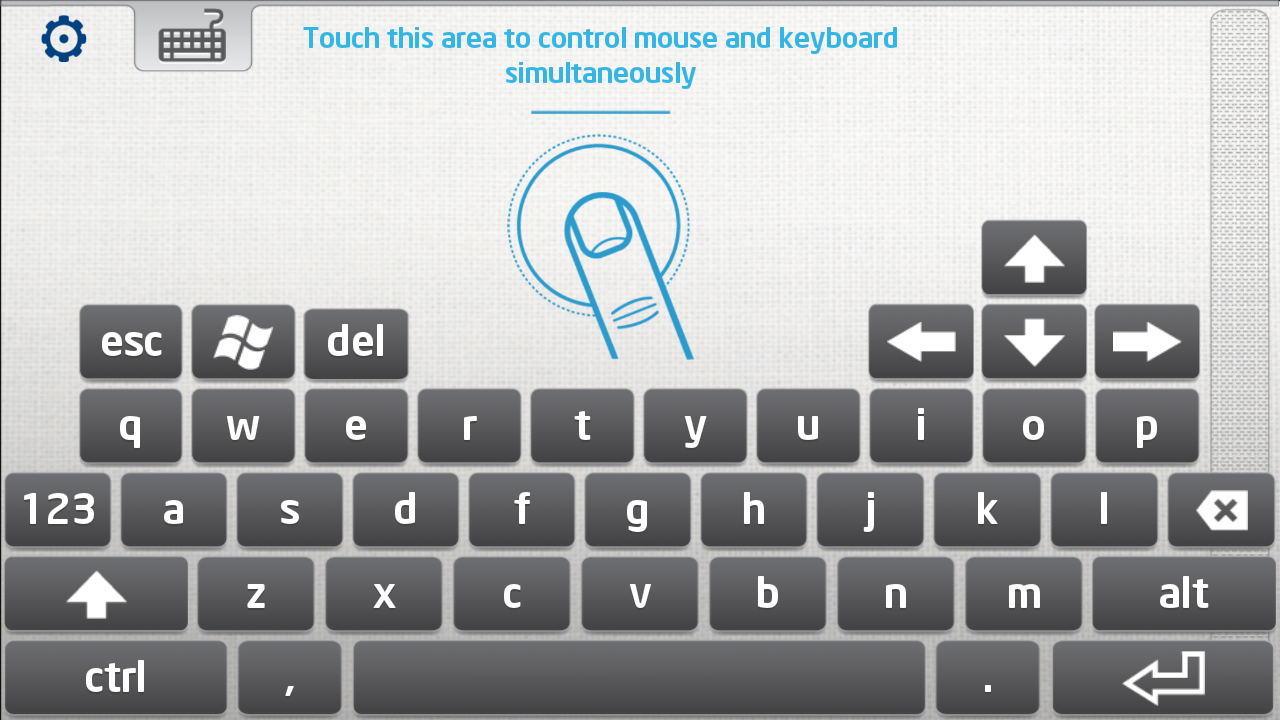
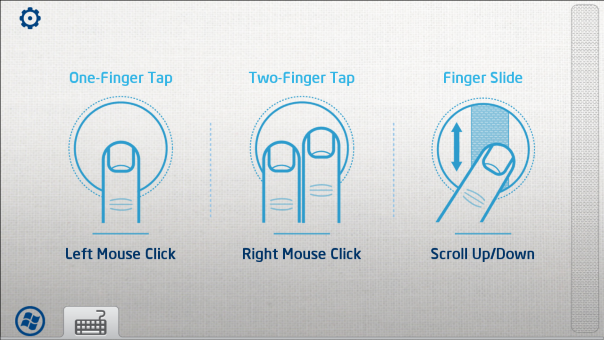
The App is basically a virtual trackpad and keyboard for your computer. You can use it in portrait or landscape mode.

In portrait mode, your screen is divided into the trackpad area on the top and keyboard at the bottom. Intel’s keyboard looks much like any Android keyboard, but also has a Windows button, an Esc button, and the four arrow keys.

Aqua_Power_HD_2016-01-07-21-54-01-Custom

Stuff which should have been there:

There could be some enhanced controls to fully optimise the facility. First, there is no “continuous scrolling” , that means you have to touch scroll button many times for scrolling upto a large distance. Second there is no “direct volume control” , since it is always convenient to adjust volume by using a dedicated key than to use mouse. We firmly expect that these features will be added in the upcoming updates.

Secret Trick To Make Your Android Smartphone Super Fast

Android Smartphone

Android Smartphone

These simple trick can help you speed up the performance of your Android smartphone or tablet

It is pretty logical that a phone’s capabilities depend on its hardware. A phone with better hardware configuration is faster (and costlier). Speed and performance also depends on how the implemented software utilizes the hardware. This fact is a hint that changing phone or installing custom ROM is are not the only available choices to speeding up your smartphone.

We, in this article, are providing some handy methods by which you can virtually enhance the potential parameters of your smartphone.

Introduction to Chromer, Chrome Custom Tabs and Webview:

Webview is a system component powered by Chrome that allows Android apps to display web content faster. Similarly, Chrome custom tabs allow apps to load web pages faster.

Chrome custom tabs is implemented manually by developers in each app which uses it. But for the uninitiated, here come the Chromer. It lets you use the custom tabs on your own. Take a look at the description of this app on Play Store to get an idea of what it is and how to use it:

Chromer allows you to use chrome custom tabs on your phone without requiring app developers to implement it manually.

By doing so, you get a lighter, faster and secure browsing experience!

Featured in:
‘Chromer’ gives every app its own custom internal browser. – Phandriod.com
Chromer Opens All Of Your Links In A Chrome Custom Tab – AndroidPolice.com

What do I need to use this?
You need any custom tab compatible browsers. As of now only Google Chrome 45 and greater supports custom tab, hence you need to have it installed to make any use of this app. You can install it here.

Hows is using chrome custom tabs advantageous?
Using Chrome custom tabs you have the following advantages
•  Minimal distractions from the app you are using.
•  Pages load faster relatively.
•  You don’t need to login to websites again.
•  Your forms are auto filled if you have auto fill enabled.
•  You can use Chrome’s data saver feature.
•  Your browsing experience is secure with latest security updates! Other browser apps using in-built webview can be prone to security and performance issues. If you are below 5.0 definitely consider chromer!
•  Ability to stack multiple links and then open them later using floating bubbles.

Compared to normal Chrome?
With Chromer, you are essentially loading a lightweight version of Chrome that is fast and designed for the sole purpose of displaying web pages quickly. You can always Menu – Open in Chrome to open the page in the Chrome and enjoy all features like bookmarks, history and multi-tab browsing!

Is it secure?
Chromer uses Chrome’s latest rendering engine which is always updated through Google play. Hence you are always latest on updates hence browsing using Chromer is much more secure than normal Webview found on android versions below 5.0.

How to use?
Set Chromer as the default browser in your phone. From there on, any link you try to open in your phone will be presented in a custom tab. You can also not do this and choose to open link in Chrome when prompted

Modify settings and increase the transition speed of animations :

Android phones include a secret developer options menu that is hidden from users until they unlock it. Inside that special menu is a series of three settings that control how fast a phone’s transition animations play. By tweaking those settings, you can double the speed of those animations and as a result, your phone will feel much faster than it was before.

Here’s all you need to do:

->>In the Settings app on your Android smartphone/tablet, scroll to the bottom and tap About phone
->>Find the entry titled Build number and tap it repeatedly seven times
->>Press the back button and you’ll see a new Developer options menu above About phone
->>Inside the Developer options menu, scroll down and find the following three settings: Windows animation scale, Transition animation scale and Animator duration scale. By default, each one is set to 1x. Open them one at a time and change 1x to .5x .

Thats it, animation transitions are now having high transition speed, and now your phone will feel much faster than before.

Other ways include installing some cleanup tool like SD Maid, or some RAM management tool like Memory Booster-RAM Optimiser.

15 features that Samsung’s Galaxy S7 has that the Apple’s iPhone 6S doesn’t

iPhone 6S vs Samsung Galaxy S7 : List of features that Galaxy S7 has and iPhone 6S doesnt

galaxy-s7-702x336

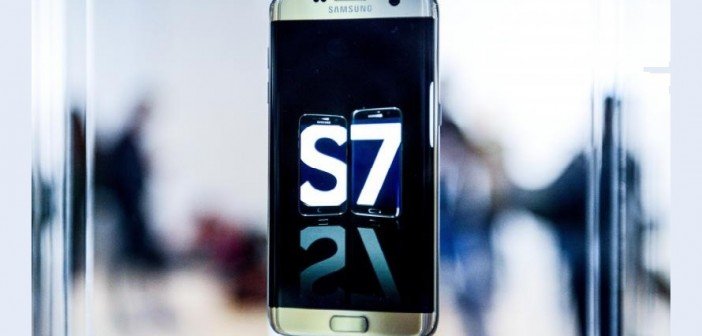
Samsung, the South Korean technology giant on Sunday evening officially announced the ‘Galaxy S7’ family of devices during an awesome event at MWC (Mobile World Congress) in Barcelona, Spain. In comparison to its predecessor, the Galaxy S7 may be considered an “S” generation device. Without any doubt, the Galaxy S7 is Samsung’s best phone till date, which not only provides some amazing features but also give a good feel of the device.

The Galaxy S7 phone impresses with its features and functions, many of which you would not find on iPhones. With the Galaxy S7 expected to hit the stores soon to compete against the iPhone 6s phones, let’s take a look at few things the new Samsung Galaxy S7 can do that the Apple iPhone 6s cannot.


High-resolution AMOLED displays

Both the Galaxy S7 and Galaxy S7 edge look like refined versions of their predecessors. When it comes to image clarity, the 2560 x 1440 Super AMOLED displays of both the devices outshine the iPhone 6s and iPhone 6s Plus. According to rumors, the iPhone is expected to move towards AMOLED screen technology in the future.

“Always-on” Display

AMOLED display also allows Samsung turn on only select pixels on the screen to offer users information such as date, time and notifications are visible without having to unlock the phone. On iPhone, you have to wake the display to check the time or notifications.

Double the RAM

While the iPhone 6s has 2GB of RAM, the Galaxy S7 comes with an impressive 4GB of RAM. However, it will be interesting to see whether it can deliver better performance than its predecessor with this RAM size.

Water and Dust resistance

The Galaxy S7 has an IP68 rating to prove that it is water-resistant and dust-proof, which means that it can go more than a meter under water for around 30 minutes. On the other hand, Apple’s recent iPhones are more resistant to water damage but they don’t have the same certification as the Galaxy S7.

Larger pixels

The camera pixels are expected to be 30% larger than the ones in the iPhone 6s Plus. In comparison to 1.22-micron for Apple, it would be 1.4-micron pixels for Samsung.

Dual-pixel tech

It has been reported that Samsung has brought Canon’s dual-pixel technology to its Galaxy S7 flagships, which enables it to use all of its pixels to focus and capture light at the same time.

MicroSD support

A feature that is desired by many, the Galaxy S7 comes with expandable memory. Samsung has reintroduced microSD card slot into the Galaxy S7. The slot is combined in the SIM card tray and allows you to add up to an additional 200GB that allows you to keep your internal memory free for apps and processing.

Better camera aperture

At f/1.7, the camera’s aperture outclasses the iPhone 6’s f/2.2 aperture, which should help Samsung produce better low-light pictures.

Faster auto-focus

The Galaxy S7 can autofocus much faster than the iPhone 6s, particularly in low lighting conditions. This is very important when you are trying to capture a quick shot.

Bigger batteries

The standard Galaxy S7 has a 3,000mAh battery and the S7 Edge has a 3,600mAh battery and they are thicker too. In comparison, the iPhone 6s has a 1,715mAh battery and the iPhone 6s Plus has a 2,750mAh battery.

Water-cooling

Compared to the S6, CPU performance would be 30% faster and 3D graphics performance would be 64% faster. The company is using a new way of cooling the flagship: water-cooling like one would find on desktops and other more advanced devices, which is lacking in iPhones.

Faster charging (wired)

The Galaxy S7 features fast-charging battery technology, which can be disabled and enabled depending on user preferences. With quick charge, you can get about 60-percent of a charge on about 30 minutes of charging. This feature is missing in iPhone 6s.

Faster wireless charging

The Galaxy S7’s battery also allows for quick wireless charging that Samsung claims is faster than the regular wired charging. This feature is not available in the iPhone 6s.

Samsung Pay works on regular credit card readers

Samsung Pay works with almost any credit card reader, even very old models, meaning you can pay with your Samsung Galaxy S7/S7 Edge almost anywhere. On the other hand, the iPhone’s Apple Pay only works on newer credit card terminals have near-field communication (NFC) technology built into them.

As Samsung doesn’t need NFC support to enable Samsung Pay, one can say that its wireless payments product is superior to the iPhone. In addition, Samsung has announced a massive Samsung Pay expansion disclosing that many additional markets will get Samsung Pay support soon.

Virtual Reality (VR)

When it comes to its VR endeavour, Samsung is moving ahead in that direction with it unveiling probably the first smartphone Galaxy S7 in VR. Each person in attendance were wearing a Gear VR attached that even got Facebook’s CEO Mark Zuckerberg on stage while everyone’s face was covered with the Gear VR headset, specifically trying to describe the social aspect of VR and the improved Oculus Samsung partnership. While Apple is interested in the VR space, it still has to make any announcements in this space.

What Is Programming And Why You Learn To Code?

Short Bytes: With the advent of new online opportunities, learning how to code is easier than ever. Read more to know why everyone should learn to code and grab the best courses to kickstart your coding career.

 learn-to-code-what-is-programming
Tons of people start programming because they fall in love with codes and feel excited around computers. They go on to learn different programming languages, work on multiple platforms and build things like websites, apps, programs etc. that we use in our everyday life. However, if you are not a programmer, you need to learn the meaning of programming as it’s worth your time to learn how to program.So, what is programming? In the simplest language, programming is explaining to a computer what you want it to do for you. It involves a set of instructions that are written following a particular syntax. “Programming is one of the only things in the world that you can do where you can sit down and just make something completely new from the scratch — whatever you want,” says Facebook founder and CEO Mark Zuckerberg.

programming-happy-fast-gif

While people consider it a way to develop complex algorithms that a newbie fails to understand, basically it’s a process of breaking down the problems. One of the best things about coding is that anybody can learn it. Learning programming could seem tough when one starts, but you slowly develop the taste over the time.

Stressing over the importance of coding, in the Lost interview with Steve Jobs, Apple co-founder said, “I think everybody in this country should learn how to program a computer because it teaches you how to think.”

Also Read: Which Are The Trendiest Programming Languages Of 2016?

Now that everything is becoming automated, the basic knowledge of how to write code has become a fundamental need. You could think coding as applied mathematics and science because it lends you an iterative problem-solving approach. In simpler words, it makes you more productive, effective, and efficient.

Just take a look around, coders are the new superheroes and coding is their superpower. It has even prompted the ex US House Majority Leader Eric Cantor to declare that “becoming literate in code is as essential to being literate in language and math.”

So, what are your chances if you take up programming as your career?

The tech world needs more developers that ever and skilled programmers are in the shortest supply. Start from the basics, if you find some language interesting, own it, make yourself excellent.

Here are some programming courses that you can take up and become the next Bill Gates and Mark Zuckerberg.

  1. Java
  2. Python
  3. JavaScript
  4. Ruby
  5. C#
  6. CSS
  7. Swift
  8. Ruby On Rails
  9. AngularJS
  10. HTML5 & CSS3


This shoe charges your smartphone while walking

kinetic-shoe-1-900x420-702x336


Energy harvested from this walking shoes can be used to charge your smartphone

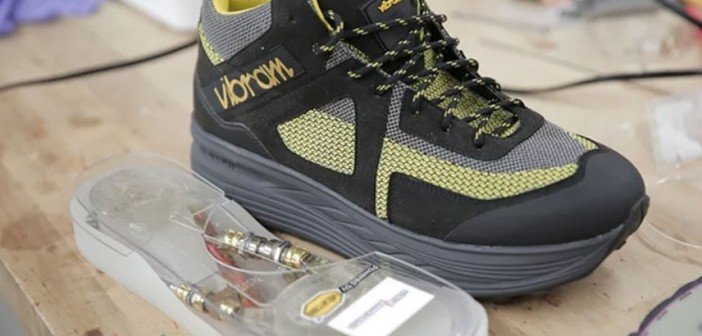
Our shoes may become our next energy source. Thanks to a new energy harvesting and storage technology developed by the mechanical engineers at the University of Wisconsin-Madison. This technique can reduce reliance on batteries in mobile devices and charge your smartphone as you walk.

Tom Krupenkin, professor of mechanical engineering, and senior scientist J Ashley Taylor described the innovative energy-harvesting technology that can capture the power of human motion to charge mobile electronic devices such as smartphones and laptops.

kinetic-shoe-2-569x383 (1)


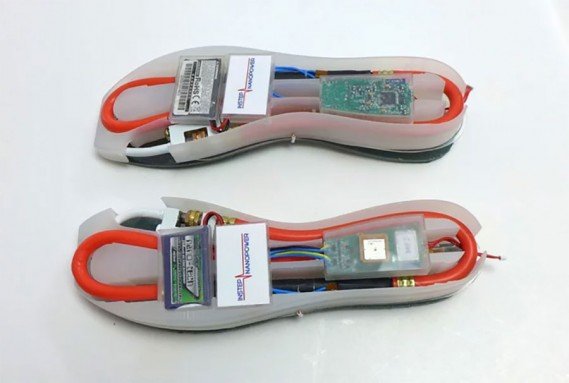
This could enable a footwear-embedded energy harvester that captures energy produced by humans during walking and stores it for later use.

Power-generating shoes could be especially useful for the military, as soldiers currently carry heavy batteries to power their radios, GPS units, and night-vision goggles in the field. The advance could also provide a source of power to people in remote areas and developing countries that lack adequate electrical power grids.


“Human walking carries a lot of energy. Theoretical estimates show that it can produce up to 10 watts per shoe and that energy is just wasted as heat. A total of 20 watts from walking is not a small thing, especially compared to the power requirements of the majority of modern mobile devices,” explained Krupenkin.

Krupenkin and his colleague J. Ashley Taylor believe that this technology could be a game-changer in the energy space that could power a wide range of devices from your phone to your tablet to just about anything that requires batteries for operation.

A typical smartphone requires less than two watts of energy.

“We have been developing new methods of directly converting mechanical motion into electrical energy that are appropriate for this type of application,” Krupenkin noted in a paper published in the journal Scientific Reports.


The team has been working to develop new method of converting mechanical energy into electrical energy that would work for generating power from a human walker. The process the team is working on now is known as reverse electrowetting. This technique uses a conductive liquid that works with a nanofilm-coated surface that is able to produce electricity.

Researchers developed a ‘bubbler’ method, which combines reverse electrowetting with bubble growth and collapse. A bubbler has no moving mechanical parts and uses a pair of flat plates with a conductive liquid between them. The tiny holes in the bottom plate allow pressurized gas to enter and form tiny bubbles. The bubbles grow until they are large enough to touch the top plate, which causes the bubble to collapse.

The speedy, repetitive growth and collapse of bubbles pushes the conductive fluid back and forth, generating electrical charge. This method produces around 10 watts per square meter of surface and in the space of a shoe; the team believes that making 10 KW of power might be possible.

The findings were published in the journal Scientific Reports.

The engineers are looking for industry to commercialise the technology through their startup company, InStep NanoPower.